English
 日本語
日本語
 한국어
한국어
 简体中文
简体中文
 繁體中文
繁體中文
 Italiano
 español
 Deutsch
 Русский


Basic graphic digital tools to have fun
课程介绍
Digital art for kids
My digital art lessons try to promote the child's creativity with safe and engaging and educational digital experiences using a variety of online and offline tools.
I first try to assess the child's current skills and wishes in the first couple of lessons using games and activities, letting the child express his/her own creativity freely but in a supervised and guided way. Then I use the gathered information to better structure the next lessons.
This also depends on the age of the child and his/her familiarity with drawing and painting on the one hand, and computers or tablets on the other. Sometimes, we can use traditional tools like pen and paper and then maybe scan the drawing or take a picture and continue on the computer.
Even if this is a digital art class, I highly encourage students to practice with analogue means like pencils, markers, crayons, brushes, etc. to get a more material and direct experience on the one hand, and to see the effect and the peculiarities of the different real drawing tools which they will use in their simulated versions in the software applications. If a child is not already familiar with real pencils, pens, etc. it will have difficulties grasping the pros and cons of selecting those tools in a digital design tool.
Even if this is a digital art class, I highly encourage students to practice with analogue means like pencils, markers, crayons, brushes, etc. to get a more material and direct experience on the one hand, and to see the effect and the peculiarities of the different real drawing tools which they will use in their simulated versions in the software applications. If a child is not already familiar with real pencils, pens, etc. it will have difficulties grasping the pros and cons of selecting those tools in a digital design tool.
Especially at the beginning and for children with little experience with digital art tools, I use a few online art games, which are simplified tools specifically designed for kids. This way, the child is immersed in a playful activity and at the same time learns about colours, shapes, sizes, etc. without fear of making mistakes and which he will encountered later in more specialised and "professional" graphic tools.
We begin with Sketchpad (https://sketch.io/sketchpad/), but also Pixilart and Kleiki, and then - if necessary - learn how to use other graphic tools like Autodesk Sketchbook, Canva, Krita, Photopea and Inkscape. All these tools are FREE or have a free version more than good enough for beginners.
Regardless of the tools used and the level and competence of the student, another objective is always to stimulate immagination and creative thought, express what the child thinks and feels, create imaginary worlds, tell stories, replicate real world objects and creatures, learn how to best use colours and shapes and boost self esteem helping the child do his best with the tools at hand.
I teach them to recognise the interface tools, how to use them, how to move in the interface, how to load and save their creations, use basic shapes (rectangles, circles, etc.) both with preset tools or free-hand tools, how to remedy mistakes. Give them premade drawings to colour, draw and replicate what they see around them or a picture I give them and so on. I will assign homework more or less on a regular basis in order for the child to stay focussed and practice his or her skills. Like with anything in learning, most of the work is always done outside class. It takes time and lots of work to learn and reach good levels.
It all very much depends on the single child. I always try my best both with children and adults to adapt method and contents to the student's needs, regardless of what is written in the class programme. We have all the freedom in the world to make the best out of our lessons, find better and new ways to explain in case the child has difficulties, etc.
The kids will explore artistic elements like patterns and symmetry, understand emotions through art, and learn the basics like color palettes, proportions, the use of space, contrast, the use of shapes, etc. They will receive personalised constructive feedback on their work each week. As well as positive encouragement on their work, as well as suggestions on how to overcome difficulties and mistakes and improve their abilities.
To Parents: important lesson information:
1) Lessons will be held in English (or Italian or Spanish). I do not speak Japanese, unfortunately. The kid must have a sufficient English level in order to a) use the graphic tools (understand menu items, commands, preferences, etc.) and understand what I say and communicate with me. I'm also a language teacher and I can help but that is not my main rolel in this type of lesson.
2) You can be present during lessons to assist if necessary, but please do not interfere and leave your child free to express their wishes, make mistakes, ask questions, etc. The lesson is for the child and for the child alone.
3) Please hold lessons in a quiet place: no TV, no phone notifications, no noisy areas, no talking to others, no pets, etc.
3) Please use a computer, not a mobile phone. Tablets are OK but only as the device your child will use to design, and not the device used to connect to the platform. Unlike in-person lessons, where the teacher and the student can look at the same screen, and can interact quickly, including the teacher showing directly on the screen, moving the student's hands if needed, etc., these things become more difficult online. Especially when you need to see both the application you are using to draw and design AND the teacher's screen on the learning platform. That - among other reasons - is why I have two monitors, it allows me to work better and faster. I don't know what Cafetalk's policy is about students, but us teachers MUST use a computer, not smartphones or tablets.
A single screen can be OK for language lessons, etc. but if you need to learn a piece of software, esp. design software, and especially for children, the larger and the easier the setup is, the better it is for the child.
I recommend you have an extra monitor, or if CafeTalk allows it, have your kid use the computer to draw and paint and watch the lesson on a tablet or phone (or the other way around), if you can't have 2 monitors.
Another important suggestion is to prefer to use a graphic tablet with a stylus rather than a computer mouse (Wacom and other brands have plenty of products for all sizes and prices). This has 2 advantages: 1 - being more natural and efficient when using design tools, and 2 - avoid carpal syndrome and other strain conditions in the hands, wrists. etc.
4) Prepare Goolge Meet, your Internet connection, webcam, audio, etc., before the lesson.
Thank you for your cooperation.
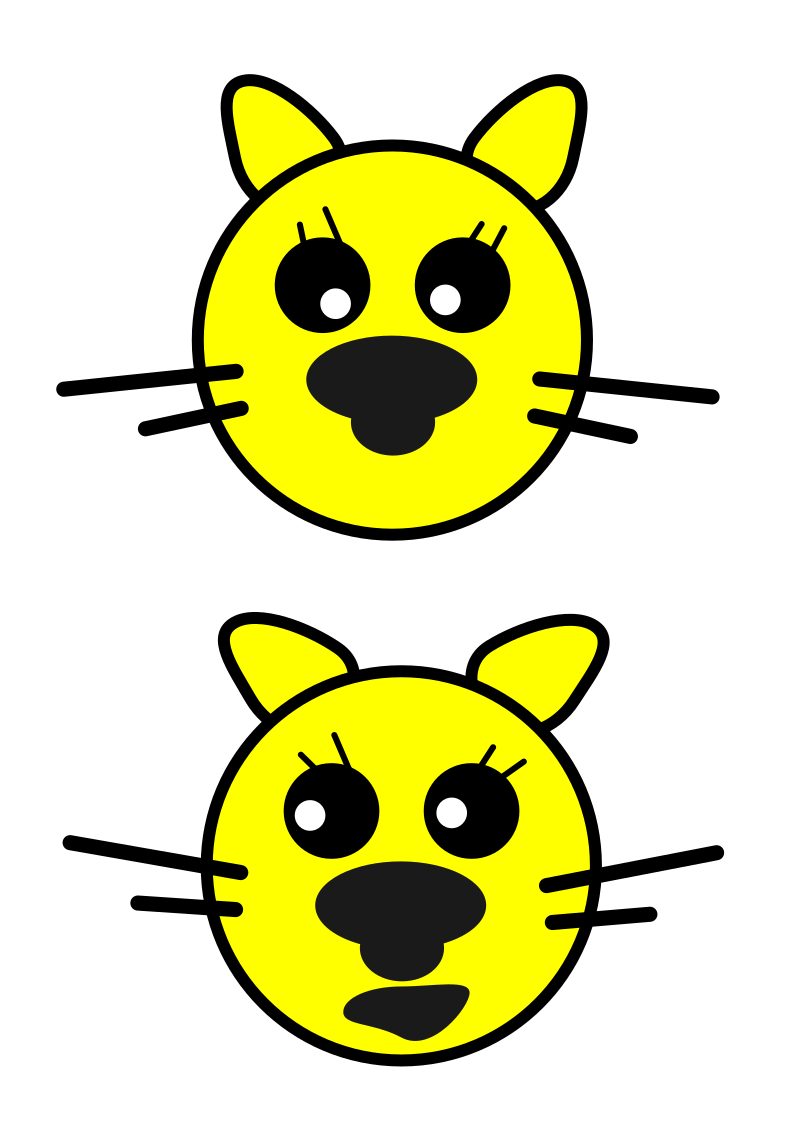
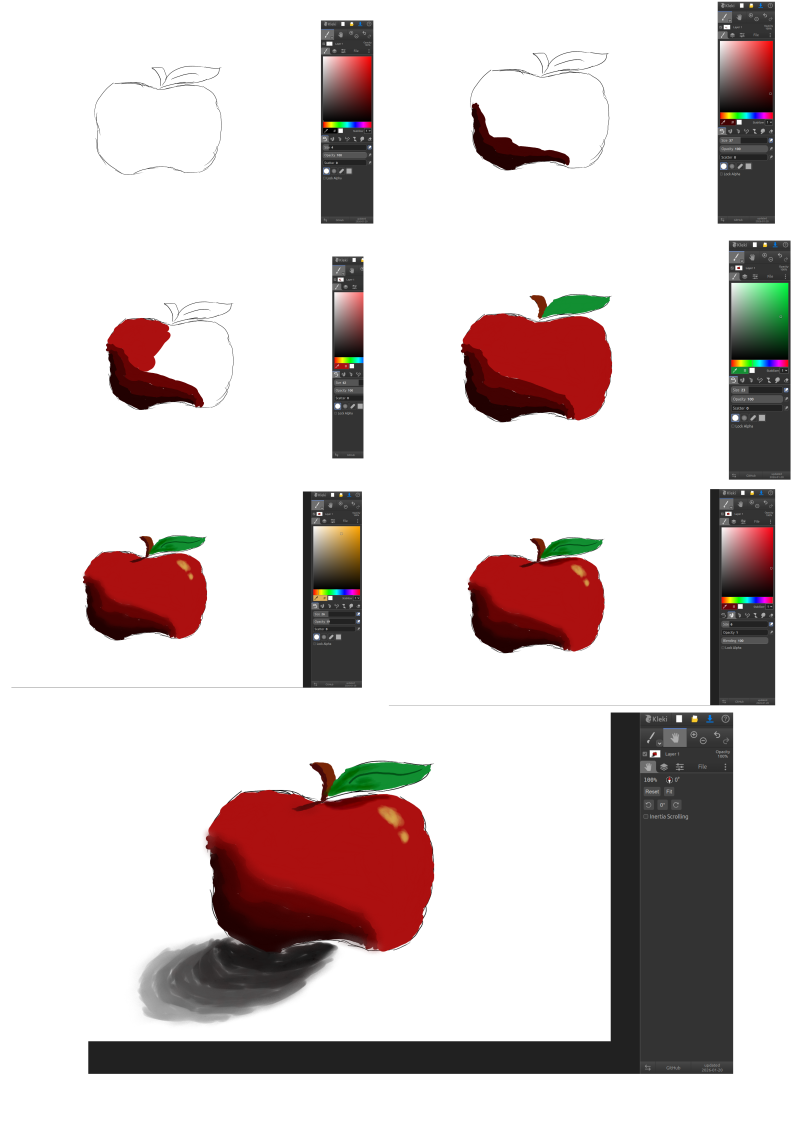
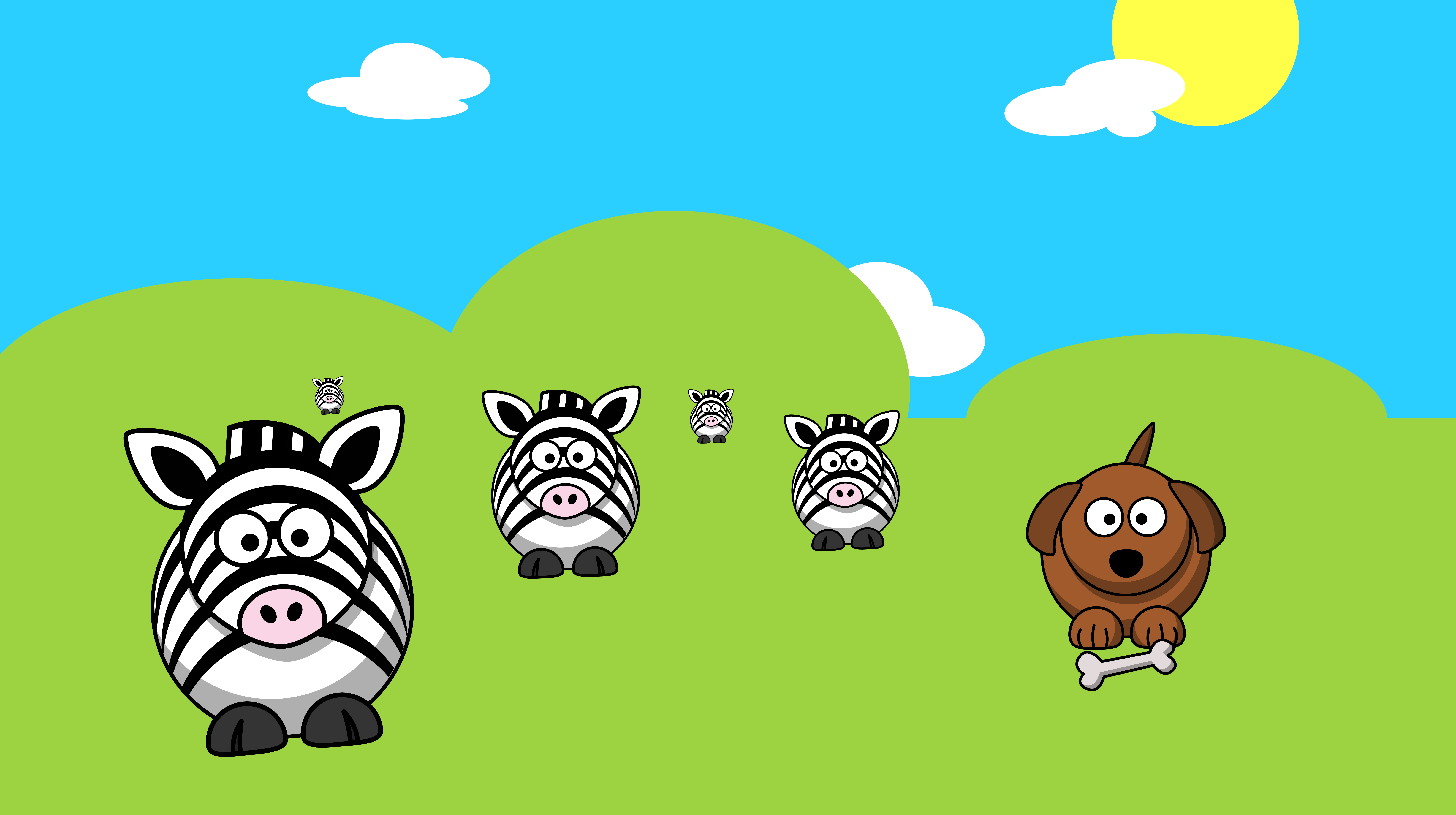
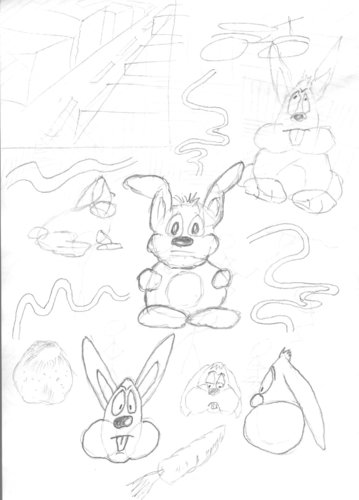
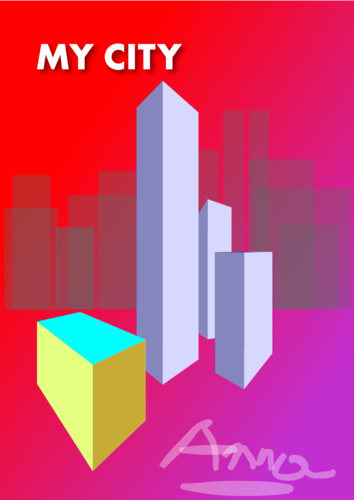
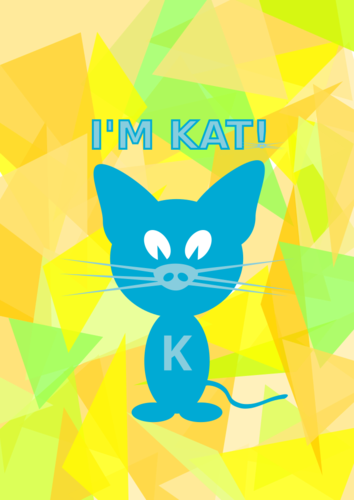
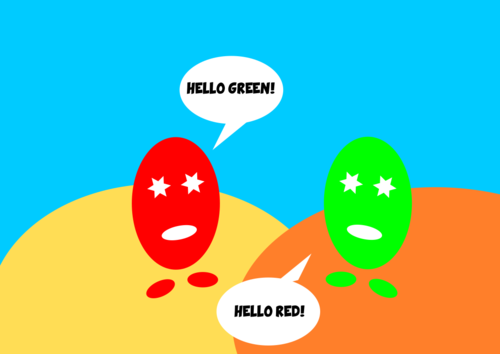
A few examples or art made by kids along the years.
A few examples or art made by kids along the years.


讲师的取消政策
课程预约确定前
- 随时可以取消。
课程预约确定后
- 课程时间前 24 小时以上→ 随时可以取消。
- 课程时间前 24 小时內 → 讲师将可能收取消费。
-
缺席→ 讲师将可能收取消费。
(请与讲师确认详情。)
讲师提供的课程
 全部课程
全部课程
-
Basic Programming for Kids in Scratch
Fun Introduction To Programming For Kids & Adults程序开发
 45 分钟 3,100 点提供试听
 -
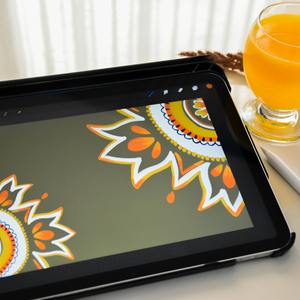
Digital Art for Kids in English - 3-Pack
Basic graphic digital tools to have fun - 3-lesson pack儿童艺术
40 分钟 X 3 8,200 点3 堂课程包 -
-
-
-
-

Italian Writing Feedback - Excercises & Corrections
Proofreading, Editing and Detailed Feedback意大利语
25 分钟 2,800 点 -
-

Inkscape Basic Course for Beginners
Vector Graphics - Graphic Design Private Lessons数字艺术
60 分钟 X 10 9,800 点10 堂课程包 -

Linux Basic Course for Beginners
Linux for beginners - IT Private Lessons信息科技
60 分钟 X 6 9,600 点6 堂课程包 -

Italian Greetings, Introductions, and Basic Small Talk
Get Started with Italian意大利语
60 分钟 X 2 3,800 点2 堂课程包 -

ITALIAN - 15-min Conversation
Improve your Italian speaking & listening skills talking to a native teacher!意大利语
15 分钟 1,900 点 -

ITALIAN - 30-min Conversation
Improve your Italian speaking & listening skills talking to a native teacher!意大利语
30 分钟 2,200 点 -

ITALIAN - 60-min Conversation
Improve your Italian speaking & listening skills talking to a native teacher!意大利语
60 分钟 3,900 点