English
 日本語
日本語
 한국어
한국어
 简体中文
简体中文
 繁體中文
繁體中文
 Italiano
 español
 Deutsch
 Русский

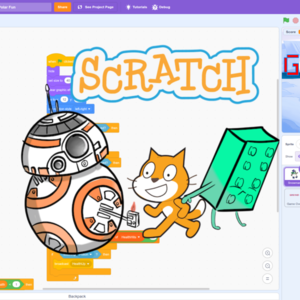
Description
PLASE READ - VERY IMPORTANT!
However, we have full control over the topics and the duration, so we can extend and modify as needed and even go on once the course has been completed.
The lessons can be held in the following languages: English, Spanish, Italian.
What is Scratch?
- Official Info: Complete details can be found at https://scratch.mit.edu/about.
- The Tool: Scratch is a brilliant, free programming tool that removes the need to write actual lines of code.
- Global Reach: It is used worldwide in schools for young people aged 8 to 16, as well as by adults.
- Skills Developed: It encourages logical and computational thinking and problem-solving—skills that are useful for programming and life in general.
- Future Proofing: It serves as a springboard for learning other programming languages later on.
Course Overview
- Target Audience: Children aged 9 to 12, but available also for teenagers and adults. Students should already have a basic knowledge of how a computer or tablet works, and be able to surf the web, use keyboard and mouse, and a good level of English, Spanish or Italian.
- Class Size: Individual lessons or a maximum of 3 people
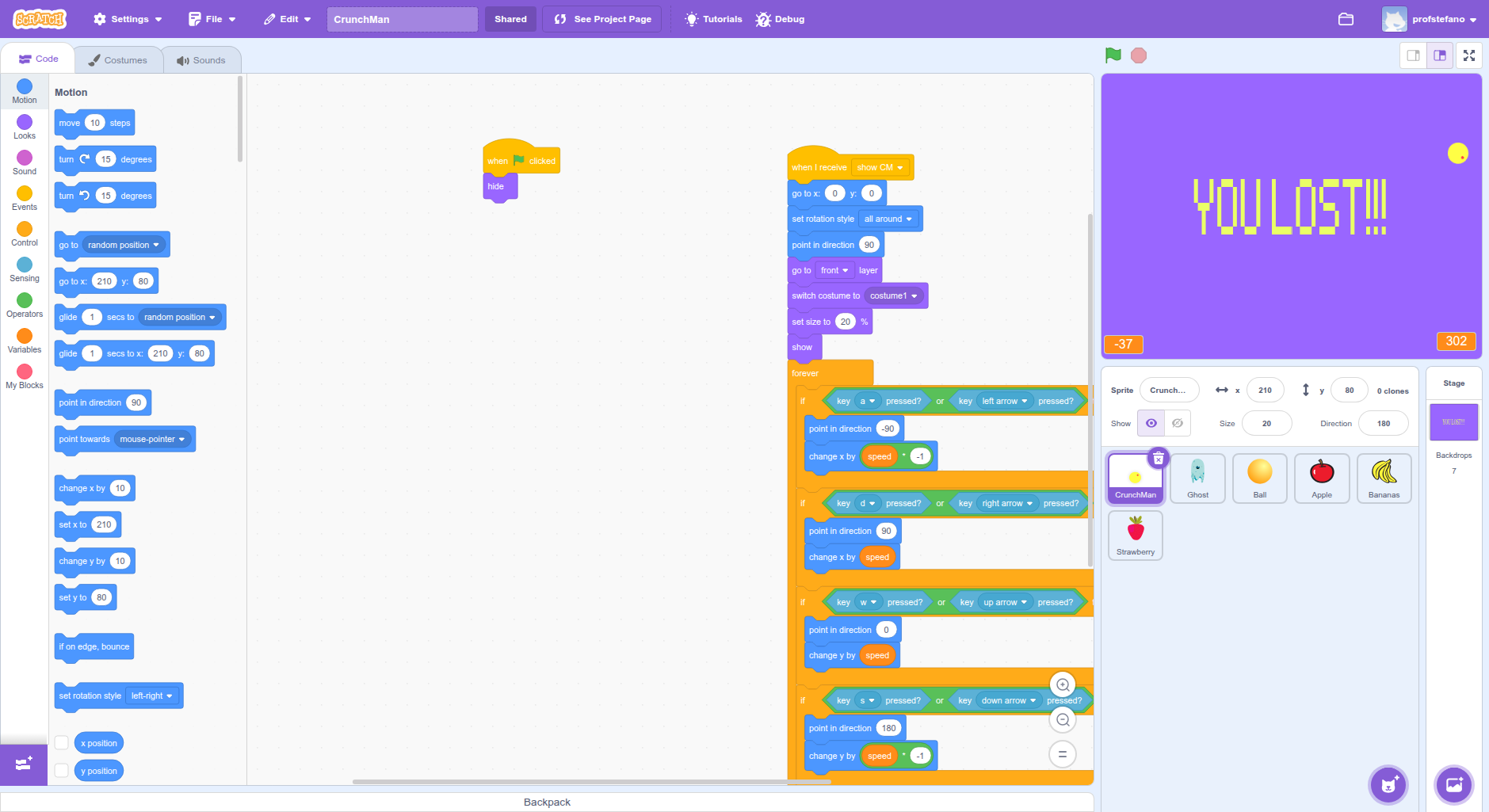
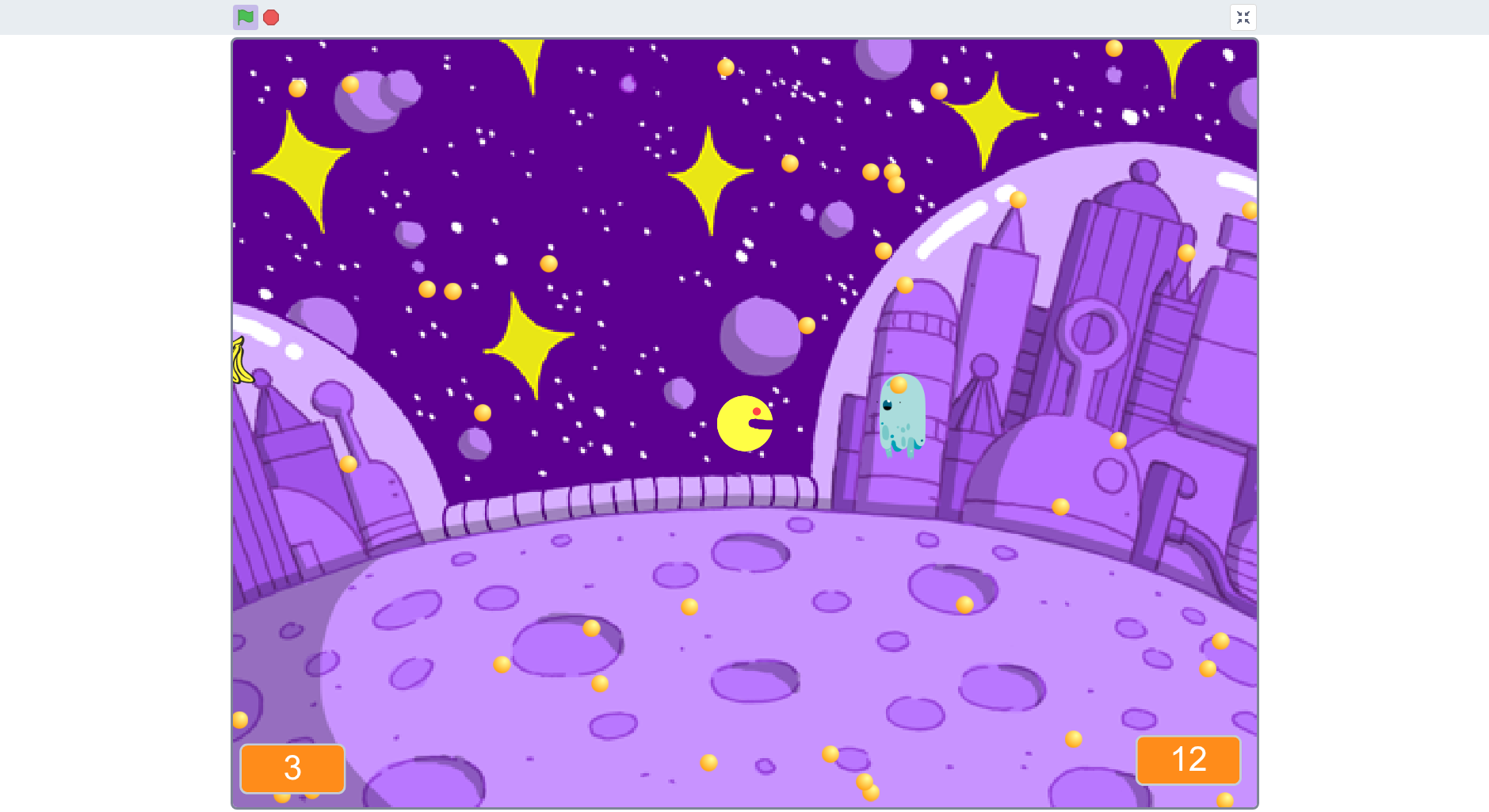
- Objective: To learn the basics of programming while having fun. By the end, students will apply concepts like variables, loops, and conditions to create interactive stories and games.
- Duration: 30 lessons of 45 minutes each.
- Approach:A playful and stimulating method that accounts for different skill levels and maintains high engagement
.
-
-
Module 1: First Steps and Creativity (Lessons 1–10)
This module focuses on getting familiar with the Scratch environment and developing a creative mindset through a hands-on, visual approach.
Module Objectives:
- Navigate the Scratch interface.
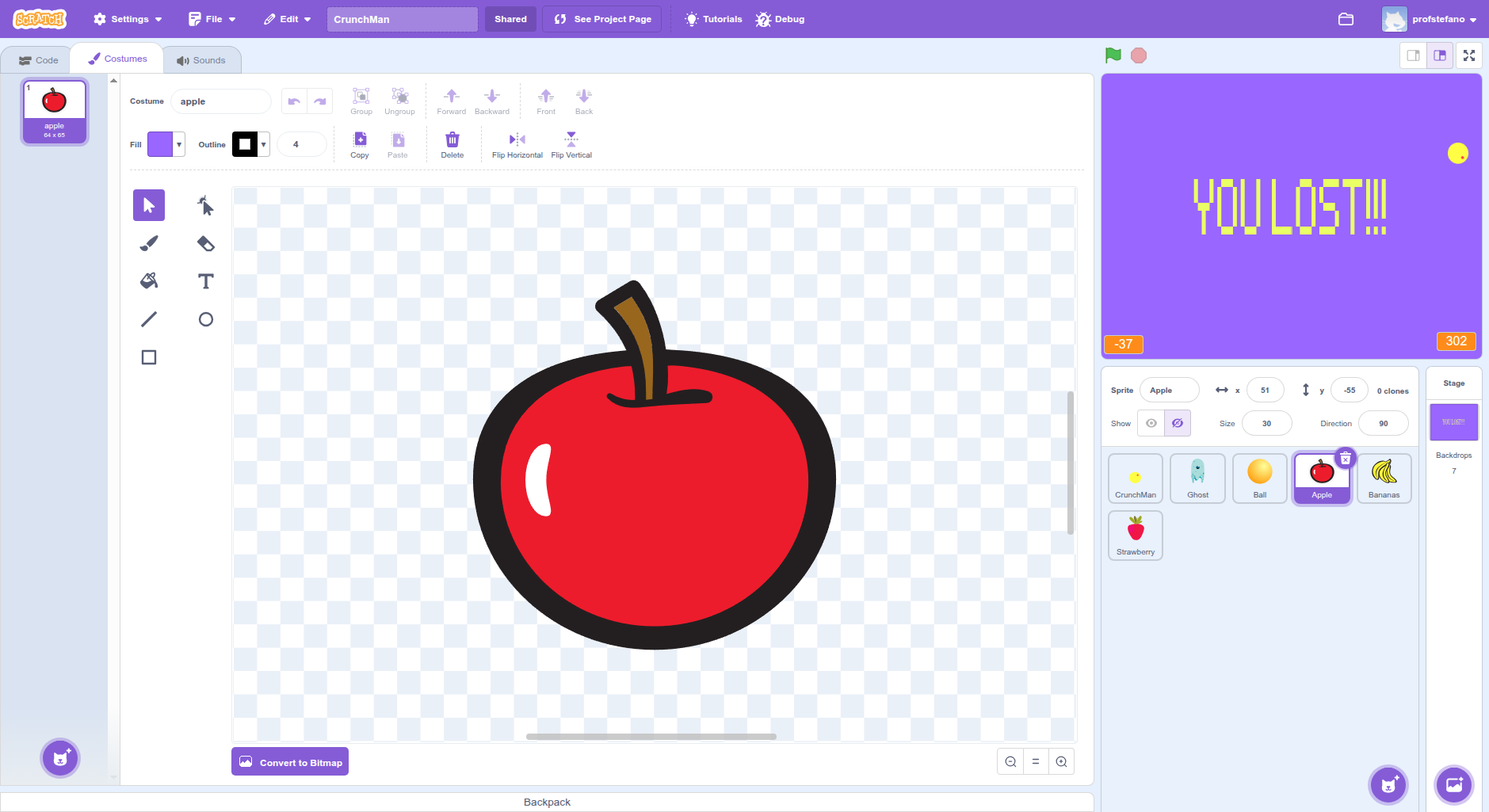
- Create and edit sprites and backdrops.
- Use motion, looks, and sound blocks.
- Understand sequences of instructions.
- Create a first interactive animation.
Lessons
1 - Welcome to Scratch!
Objectives: Familiarise with the interface.
Content & Activities: Scratch as a "creative playground." Exploring sprites, blocks, and the stage. First go with motion and sound blocks.
2 - The Moving Sprite
Objectives: Use motion blocks.
Content & Activities: Commanding a sprite to move.
Creating a simple "obstacle course." Introduction to X and Y coordinates.
3 - Adding a Friend
Objectives: Add and programme a new sprite.
Content & Activities:
Choosing or drawing a sprite. Making two sprites interact (e.g., a cat chasing a mouse).
4 - Talking and Changing Looks
Objectives: Use "Looks" and "Sound" blocks.
Content & Activities: Making a sprite talk ("say" and "think" blocks). Changing costumes and backdrops. Adding music.
5 - The First Animated Story
Objectives: Create a sequence of events.
Content & Activities: Creating a short animation, such as "An Astronaut’s Journey." Individual or group work.
6 - Draw Your World
Objectives: Create and edit custom backdrops.
Using the backdrop editor to create a fantasy landscape for a story.
7 - Speed and Waiting Games
Use "wait" control blocks. Managing timing in code. Creating an animation that "waits" for an action (e.g., a character jumping after a delay).8 - Treasure Hunt
Objectives: Review basic concepts.
Content & Activities: A playful activity where students create a treasure hunt scenario with hidden animations.
9 - Costumes and Walking
Objectives: Animate sprites using costumes.
Content & Activities: Using costumes to create the illusion of movement, such as a character "walking" on the spot.
10 - My First Adventure
Objectives: Final Project for Module 1.
Content & Activities: Students create a short interactive adventure applying all concepts learned so far.
Module 2: Logic and Interactivity (Lessons 11–20)
Students dive into programming logic, including loops (repetitions), conditions, and user interaction.
Module Objectives:
- Use "forever" and "repeat" blocks.
- Use "if... then..." control blocks.
- Programme keyboard and mouse interactions.
- Introduce variables.
- Create a mini-game.
Lessons
11 - Repeat Forever!
Objectives: Use the "forever" block.
Content & Activities: Making a sprite move in a loop (e.g., a butterfly flying in a circle). Explaining the "loop" concept.
12 - Repeat 10 Times
Objectives: Use the "repeat" block.
Content & Activities: Commanding an action to repeat a specific number of times, like a sprite's "dance".
13 - The Maze Game
Objectives: Use loops for movement.
Content &: Activities: Creating a simple maze game where the sprite moves through a path by repeating actions.
14 - If They Touch... Things Happen!
Objectives: Use "if... then..." blocks.
Content & Activities:/em> Introducing conditions. Triggering an action only when a condition is true (e.g., "if touching wall, move back").
15 - The Jumping Frog
Objectives: Combine conditions and loops.
Content & Activities: Creating a game where a frog jumps and changes appearance if it touches a specific area.
16 - Keyboard Controls
Objectives: Use "Sensing" blocks.
Content & Activities: Programming a sprite to respond to arrow keys (up, down, left, right).
17 - The Score Game
Objectives: Introduce variables.
Content & Activities: Explaining variables. Creating a "score" variable that increases when an item is collected.
18 - The Catching Game
Objectives: Apply loops, conditions, and variables.
Content &amnp; Activities: Creating a mini-game where a character must "catch" a moving object to earn points.
19 - Messages Between Sprites
Objectives: Use "broadcast" blocks.
Content & Activities: Making sprites communicate. Example: a "win" message that triggers a party animation.
20 - Game Project
Objectives: Create a complete game.
Content & Activities: Developing a mini-game using variables, conditions, and repetitions with teacher support.
Module 3: Advanced Creativity and Design (Lessons 21–30)
This module consolidates skills and introduces advanced concepts, encouraging students to design and build complex projects independently.
Module Objectives:
- Plan a project before programming.
- Use variables for scores and health.
- Create and use clones.
- Work in small groups.
- Present final projects to the class.
Lessons
21 - Plan Before You Programme
Objectives: Learn to plan a project.
Content & Activities: Sketching game/story ideas on paper or a whiteboard. Discussing challenges and solutions.
22 - Health Variables
Objectives: Use variables for "life".
Content & Activities: Creating a "health" variable that decreases when the character is hit.
23 - Shoot, Shoot!
Objectives: Create and use clones.
Content & Activities: Introduction to cloning. Creating a game where a sprite fires "clones" of a projectile.
24 - Multi-Level Games
Objectives: Use variables to manage levels.
Content & Activities: Creating a game with at least 2 levels. When the first is finished, a variable triggers the second.
25 - The Surprise Machine
Objectives: Create a randomised project.
Content & Activities: Using "pick random" blocks to create a project with different outcomes every time.
26 - My Special Blocks
Objectives: Create custom blocks.
Content & Activities: Introduction to custom blocks to simplify and clean up code.
27 - Group Workshop
Objectives: Start the final group project.
Content &s; Activities: Dividing into small groups, defining roles, and starting the shared project.
28 - Group Workshop (II)
Objectives: Continue the final project.
Conteent & Activities: Ongoing programming and addressing coordination issues within the groups.
29 - Testing and Refinement
Content & Activities Test and bug-fix. Testing projects to find and fix "bugs." Adding final touches like sound and music.
30 - Final Presentation
Objectives: Present projects to the class.
Content & Activities Every group presents their work. Celebrating the results and discussing the process.
Note: While the general target is ages 9–12, Scratch is versatile enough to be used by those up to 16 years old and even adults.
This tutor's cancellation policy
Before request is confirmed (fixed)
- Cancellation possible at any time without charge.
After request is confirmed (fixed)
- More than 24 hours before lesson start time.→ Cancellation is possible at any time.
- Less than 24 hours before lesson start time.→ The tutor may take a cancellation fee.
-
No-Show→ The tutor may take a cancellation fee.
(Please check with the tutor for details.)
Lessons by this tutor
 All Lessons
-

Digital Art for Kids in English - 3-Pack
Basic graphic digital tools to have fun - 3-lesson packArts for Kids
 40min X 3 8,200PPack of 3
 -

Digital Art for Kids in English
Basic graphic digital tools to have funArts for Kids
40min 2,800PHas Trial -
-
-
-
-

Italian Writing Feedback - Excercises & Corrections
Proofreading, Editing and Detailed FeedbackItalian
25min 2,800P -
-

Inkscape Basic Course for Beginners
Vector Graphics - Graphic Design Private LessonsDigital Art
60min X 10 9,800PPack of 10 -

Linux Basic Course for Beginners
Linux for beginners - IT Private LessonsGeneral IT
60min X 6 9,600PPack of 6 -

Italian Greetings, Introductions, and Basic Small Talk
Get Started with ItalianItalian
60min X 2 3,800PPack of 2 -

ITALIAN - 15-min Conversation
Improve your Italian speaking & listening skills talking to a native teacher!Italian
15min 1,900P -

ITALIAN - 30-min Conversation
Improve your Italian speaking & listening skills talking to a native teacher!Italian
30min 2,200P -

ITALIAN - 60-min Conversation
Improve your Italian speaking & listening skills talking to a native teacher!Italian
60min 3,900P